


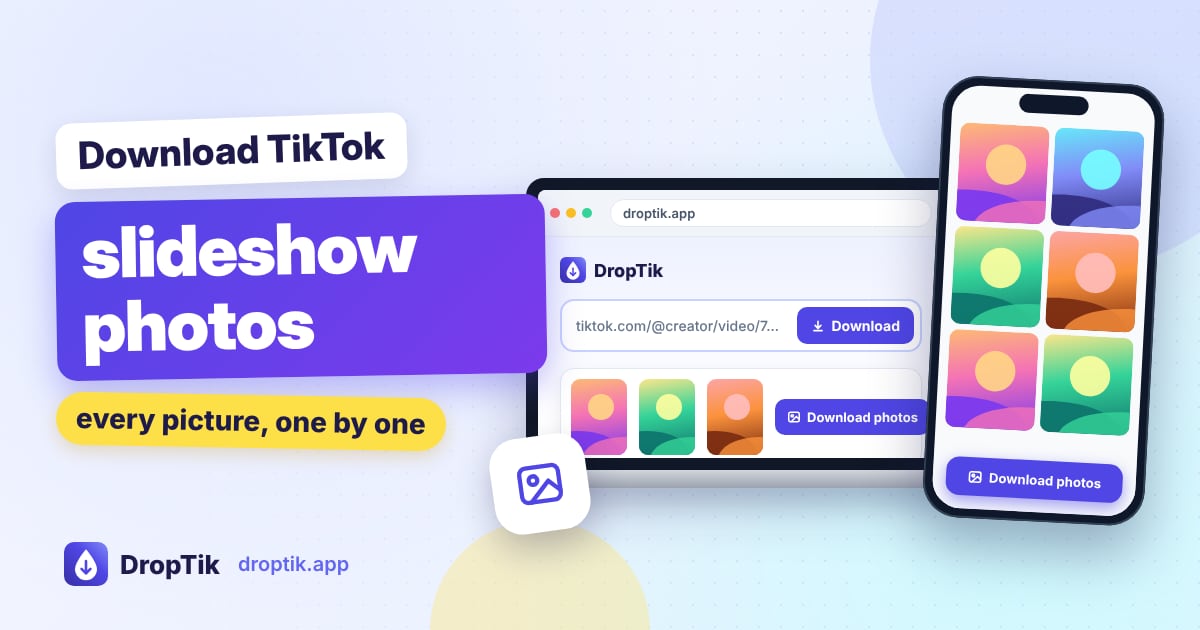
To save the pictures from a TikTok slideshow, copy the post's link, paste it into the TikTok photo downloader and tap Download. Each slide appears as its own image, and you can save them one by one or grab them all in a single ZIP file. No screenshots, no watermark, and the pictures stay in order.
This guide covers why TikTok's own Save button doesn't help here, how to get the photos onto each kind of device, and what to do with the music.
Why the Save button doesn't give you the photos
Photo mode posts on TikTok, the ones you swipe through like a carousel, are made of separate images plus a sound. But when you tap Share and Save video on one, TikTok doesn't give you those images. It turns the whole slideshow into a video, adds its watermark, and saves that instead.
That's fine if you just want to replay it. It's useless if you want the actual pictures: a recipe card to print, outfit ideas to save in an album, or a travel itinerary to keep on your phone. Screenshots don't solve it either, since you get the app's buttons in every shot and lose some quality.
DropTik reads the slideshow's image files directly, so you get the pictures themselves.
Step by step
- Copy the slideshow link. Open the photo post in TikTok, tap Share, then Copy link. Photo post links usually contain
/photo/in the address, while video links contain/video/. - Paste it into DropTik. Open the photo downloader, tap Paste, then Download.
- Choose what to save.
- Tap Download under a single picture to save just that one.
- Tap Download ZIP to get every picture in one file.
- If the post has a sound, it's listed below the pictures. Tap Download MP3 audio to save it.
If you paste a link to a regular video by mistake, DropTik simply shows the video options instead.
Getting the photos onto your phone or computer
iPhone and iPad
Single pictures go to the Files app, in Downloads. To move one into Photos, tap it, tap Share, then Save Image.
For a ZIP file: open Files, go to Downloads and tap the ZIP once. iOS unpacks it into a folder with the same name. Open the folder, tap the three dots, choose Select, select all the pictures, then tap Share and Save Images. They all land in Photos together. More tips are in our iPhone guide.
Android
Single pictures go to the Download folder and usually show up in your gallery right away.
For a ZIP file: open Files by Google (or My Files on Samsung), go to Downloads, tap the ZIP and choose Extract. The pictures appear in a new folder next to the ZIP, and your gallery picks them up from there. See our Android guide if you can't find them.
Windows and Mac
Everything goes to your Downloads folder. Double-click the ZIP to open it; both Windows and macOS can unzip without extra software.
Limits worth knowing
- ZIP size: one ZIP holds up to 20 pictures and about 50 MB. TikTok photo posts can hold more than 20 pictures; for those, save the extra pictures individually.
- Quality: you get the image files TikTok serves for that post. They're sharper than screenshots, but they can't be better than what the creator uploaded.
- Public posts only: photo posts from private accounts can't be downloaded.
- Picture order: pictures are added to the ZIP in the same order as the slideshow.
Saving the slideshow's music
Many slideshows are built around a song. When the post has a sound, DropTik lists it below the pictures. Tap Download MP3 audio and you get it as an MP3. If you only want the audio and not the pictures, the TikTok to MP3 tool does the same thing in one step.
Saving several slideshows at once
If you're collecting a series, like a multi-part recipe or a set of outfit posts, use the bulk downloader. Paste up to five links, one per line. Each slideshow shows up as a card with its own ZIP button, and you can mix in regular videos in the same batch.
Keeping slideshow pictures organised
Slideshow photos are most useful when you can find them again. After saving, put each set into its own album: on iPhone, select the pictures in Photos and choose Add to Album; on Android, Google Photos and most gallery apps have the same option. Name the album after what the slideshow was about, like "Da Nang itinerary" or "Weekly meal prep", and add the creator's username so you remember where it came from.
If you saved a recipe or a checklist, you can also print the pictures straight from Photos or your gallery, or drop them into a note in Apple Notes, Google Keep or Notion.
When the photos won't load
- Wrong link: make sure you copied the link of the slideshow itself. Profile, sound and hashtag links don't contain any photos.
- Private or deleted post: open the link in your browser. If it asks you to log in or says the post isn't available, it can't be downloaded.
- In-app browser: if you opened DropTik from inside Instagram, Facebook or Messenger, open it in Safari or Chrome instead.
- Temporary hiccup: wait a minute and tap Try again.
Using other people's photos
Slideshow photos are often original work: someone's styling, food photography or travel shots. Save them for your own reference, but ask before posting them anywhere and always credit the creator.
Frequently asked questions
Do the photos have the TikTok watermark? No. You get the image files themselves, without the logo TikTok adds when it turns a slideshow into a video.
Can I download a TikTok profile picture with this? No. The photo downloader works with photo posts, not profiles.
Why does the ZIP button not appear? It shows up when a post has more than one picture. For a single-image post, just tap Download under the picture.
Can I save the slideshow as a video instead? For many slideshows, the results also include a video option. Tap Prepare video, wait for it to finish, then download it as an MP4 with the music.