


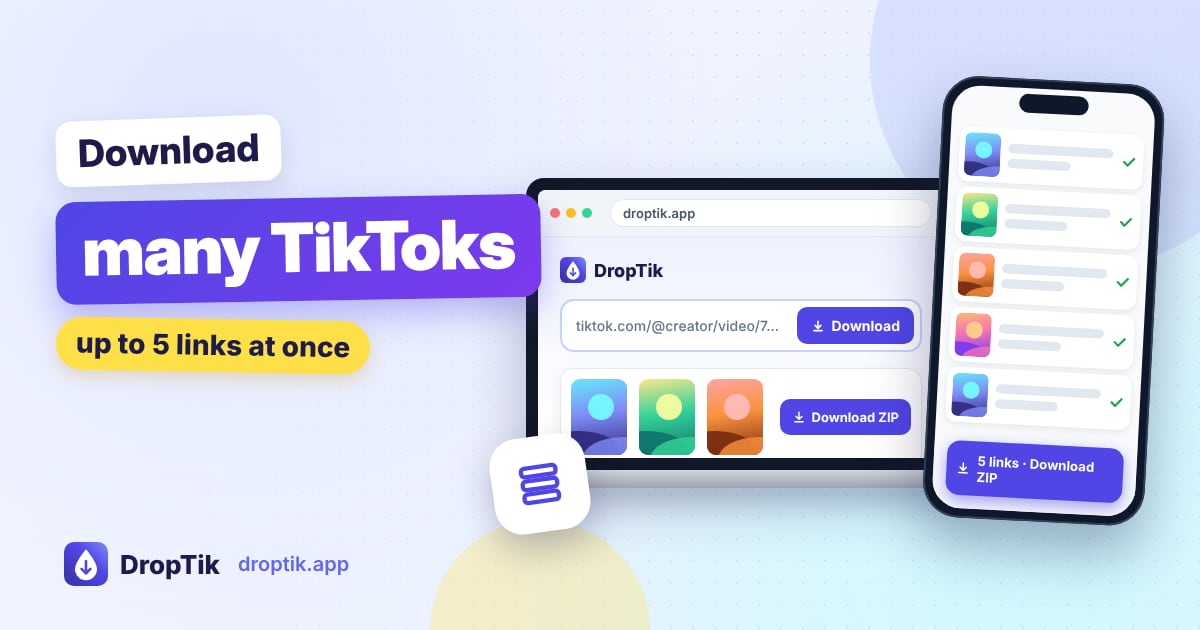
To download several TikToks at once, collect their links, paste up to five of them (one per line) into the TikTok bulk downloader and click Download files. DropTik loads each link and shows it as its own card, so you can save the videos, and the pictures from any slideshows, without pasting links one by one.
This guide shows how to gather links quickly on phone and computer, how to work through more than five, and what to do when a link in the batch fails.
When bulk downloading is worth it
Pasting one link at a time is fine for the odd video. A batch saves real time when you're:
- Saving a series. Part 1, part 2, part 3 of a recipe, tutorial or story.
- Backing up your own posts. Saving your latest videos regularly means you always have a copy.
- Collecting references. Outfit ideas, editing styles or product demos for a project.
- Archiving a moment. A handful of videos from an event or a trip that friends posted.
If you need just one video, or want to compare HD and standard versions, the main downloader or the TikTok to MP4 page gives you more control over each file.
Step 1: Collect your links
The fastest way is to keep a note open while you browse.
On a phone: open your notes app. In TikTok, tap Share on a video, then Copy link, switch to your note and paste. Repeat for each video. You end up with a list, one link per line.
On a computer: open each TikTok in its own browser tab, copy each address and paste it into a text file or note.
From your Favorites: if you've been saving videos to Favorites inside TikTok, go through that list and copy the links of the ones you want.
Only video and photo post links work. Profile links, sound pages and hashtag pages don't point to a single post.
Step 2: Paste up to five links
- Open the bulk downloader.
- Paste your links into the box, one per line. Spaces or commas between links also work.
- Check the counter under the box. It shows how many links DropTik found, up to five.
- Click Download files.
If you pasted the same link twice, DropTik removes the duplicate automatically and tells you how many it skipped.
Step 3: Save from each card
DropTik works through the links two at a time and shows each one as a card as soon as it's ready. You don't have to wait for all five.
- Videos: click Download on the card. The bulk tool picks the best direct file for each link so you can save quickly.
- Photo slideshows: each picture has its own button, and Download ZIP saves the whole slideshow in one file. A ZIP holds up to 20 images (about 50 MB), so for bigger slideshows, save the pictures one by one.
Your browser may ask once whether droptik.app can download multiple files. Click Allow so the rest of the files save without interruption.
Working through more than five links
Five links per batch keeps things quick and stops one slow link from holding everything up. For longer lists:
- Paste the first five links and save their files.
- Click Start another batch.
- Paste the next five, and so on.
A simple trick: delete links from your note as you finish them. That way you always know where you're up to, and if something goes wrong, the remaining links are still in your list.
When a link in the batch fails
A failed link doesn't affect the others. Its card shows an error, while the rest carry on. Common reasons:
- The video is private or friends-only.
- The video has been deleted.
- The link points to a profile or sound page rather than a post.
- TikTok is temporarily slowing down requests.
If several links fail at once but they all play fine in your browser, wait a minute and click Retry failed links at the top to try only those, or Try again on a single card. For a link that keeps failing, paste it into the main downloader on its own to see the specific error, and check our guide on why a TikTok won't save.
Where the files end up
All files go to your usual downloads location:
- iPhone: the Files app, Downloads. Select several videos, tap Share, then Save Videos (iOS shows the number, like Save 3 Videos) to move them to Photos in one go. See the iPhone guide.
- Android: the Download folder. They usually appear in your gallery automatically.
- Computer: the Downloads folder. File names start with
droptik.app.
Rename files as you go, or put each batch into its own folder, so you can tell them apart later.
A naming scheme that saves headaches later
Batch downloads add up quickly, and file names don't tell you much. A simple pattern helps: date-creator-topic, for example 2026-11-07-@chefanna-garlic-noodles.mp4. The date keeps files in order, the creator's username reminds you who to credit, and the topic tells you what's inside without opening it. On a computer, rename right after each batch; on a phone, renaming in the Files app or your file manager takes a few seconds per file.
What bulk downloading can't do
- No whole profiles. You can't paste a username and get every video from that account. Copy the links of the posts you want.
- No private videos. Private and friends-only posts can't be downloaded, in a batch or on their own.
- No quality picker per video. The bulk tool saves the best direct file it finds. To choose between HD and standard for one video, use the MP4 page.
Frequently asked questions
Is the bulk downloader free? Yes, with no account needed.
Can I mix videos and slideshows in one batch? Yes. Each link gets its own card with the right download options.
Do bulk downloads have the watermark? No. Each video is saved as the clean version, without the TikTok logo.
Can I get MP3s in bulk? The bulk tool focuses on videos and pictures. For audio, use the TikTok to MP3 tool one link at a time.