


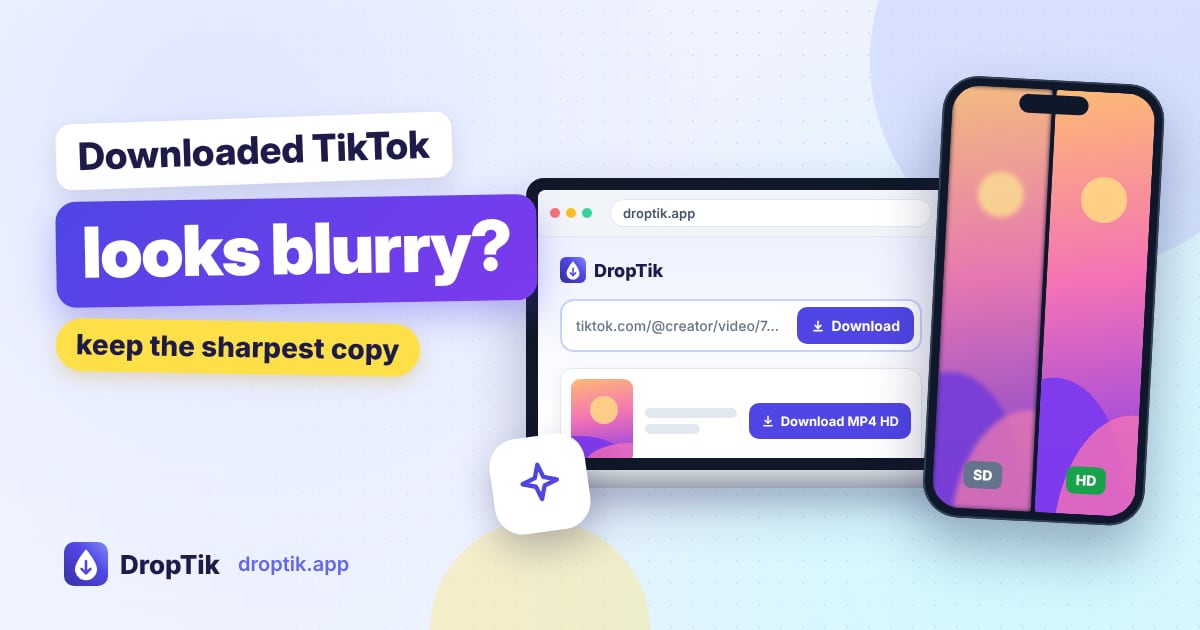
A downloaded TikTok usually looks blurry for one of three reasons: the creator uploaded a low-quality video, you picked a smaller version when an HD one was available, or the video got compressed again when you shared it through a messaging or social app. A downloader can't add detail that isn't in the source, but you can make sure you're getting the best version that exists and keep it sharp afterwards.
Cause 1: You didn't pick the HD version
When you paste a link into DropTik, the results can list more than one video version. If TikTok has an HD version of that post, it shows up as a separate option, usually the one with the higher resolution.
Fix: go back, paste the link again, and choose the HD option. The TikTok to MP4 page is designed for exactly this, showing the quality and resolution of each version side by side.
If there's only one option, that's the best version TikTok has for that video.
Cause 2: The original upload was low quality
TikTok can only serve what the creator gave it, and it compresses every upload to stream smoothly. A video filmed in dim light, recorded from another screen, zoomed in heavily, or uploaded at low resolution will look soft no matter how you save it.
Some signs that the source is the limit:
- The video looks just as soft in the TikTok app on a good connection.
- There's no HD option in the results.
- Fine details like text, hair or grass look smudged even in the app.
Fix: there isn't one for the download itself. If it's your own video, keep the original file from your camera, which is almost always better than the version on TikTok.
Cause 3: It was compressed again when you shared it
This catches people out all the time. The file on your phone looks fine, but the copy your friend receives is blurry. That's because most messaging and social apps shrink videos when you send them, to save data.
Ways to keep quality when sharing:
- WhatsApp: choose the HD option when sending a video if it appears, or send it as a Document instead of as a video. Documents are sent without re-compression.
- Zalo, Telegram and similar apps: sending the video as a file rather than as media usually keeps the original quality.
- Instagram: in Settings, look for the media quality option and turn on Upload at highest quality. Even then, Instagram re-encodes uploads.
- Email or cloud links: sharing a Google Drive, iCloud or Dropbox link keeps the file untouched.
Cause 4: The video is being stretched on a big screen
TikToks are vertical, typically 1080 pixels wide at most and often 720. On a phone, that looks crisp. On a laptop or TV, especially full screen in landscape, the player stretches those pixels across a much bigger area, and the video looks softer.
Fix: watch it at its natural size, or on a vertical screen. If you're editing it into a horizontal video, place it at its normal size with a background around it rather than zooming it to fill the frame.
Cause 5: You saved a screen recording or a re-upload
If you screen-recorded the TikTok, or downloaded a copy someone else re-posted, you're looking at a copy of a copy. Each round of recording or re-uploading loses quality, and screen recordings also capture the app's buttons and captions.
Fix: find the original post by the creator and download that instead.
How to check a video's resolution
Knowing the actual resolution tells you whether you have the best version.
- iPhone: open the video in Photos and swipe up (or tap the info button). The details show the resolution, such as 1080 × 1920.
- Android: in your gallery app, open the video and tap the three dots or Details.
- Windows: right-click the file, choose Properties, then Details, and look at Frame width and Frame height.
- Mac: select the file in Finder and press Cmd+I, or open it in QuickTime and choose Window, Show Movie Inspector.
For a TikTok, 1080 × 1920 is about as sharp as it gets. 720 × 1280 is common and still fine on a phone.
Will an "HD enhancer" or AI upscaler help?
Upscaling apps can make a soft video look a bit cleaner by sharpening edges and smoothing noise, but they're guessing at detail rather than recovering it. Results vary from decent to strange-looking, especially on faces and text. If quality matters, the HD download from the original post is always a better starting point than upscaling a poor copy.
Quick checklist
| Problem | Most likely cause | Fix |
|---|---|---|
| Blurry right after downloading | Standard version picked, or low-quality upload | Choose HD if listed; otherwise it's the source |
| Fine on your phone, blurry for your friend | App compressed it when sharing | Send as a file or document |
| Blurry on TV or laptop | Vertical video stretched | Watch at natural size |
| Buttons or captions visible | Screen recording | Download the original post instead |
Frequently asked questions
Is the download lower quality than the video in the app? No. You get the same video TikTok streams to the app, without the watermark. It's often slightly better than the copy from TikTok's own Save button, which TikTok re-encodes to add its logo.
Why does DropTik sometimes show only one quality? TikTok doesn't keep an HD version of every video. When there's only one, it's the best available.
Can I download TikTok in 4K? Only if the creator uploaded in 4K and TikTok kept that version, which is rare. Most TikToks top out at 1080p.
Does TikTok's Data Saver setting affect my download? No. Data Saver only lowers the quality TikTok plays in your app. DropTik fetches the video separately, so your app settings don't change what you download.
Does the download look worse on older phones? The file is the same, but a small or low-resolution screen can make any video look softer. Try playing it on another device to compare.